Installing Android Studio
Here’s the step by step on how to download Android Studio on you device!
Step 1:
Head over to this link to get the Android Studio executable or zip file.
Step 2:
Click on the Download Android Studio Button.

Click on the “I have read and agree with the above terms and conditions” checkbox followed by the download button.
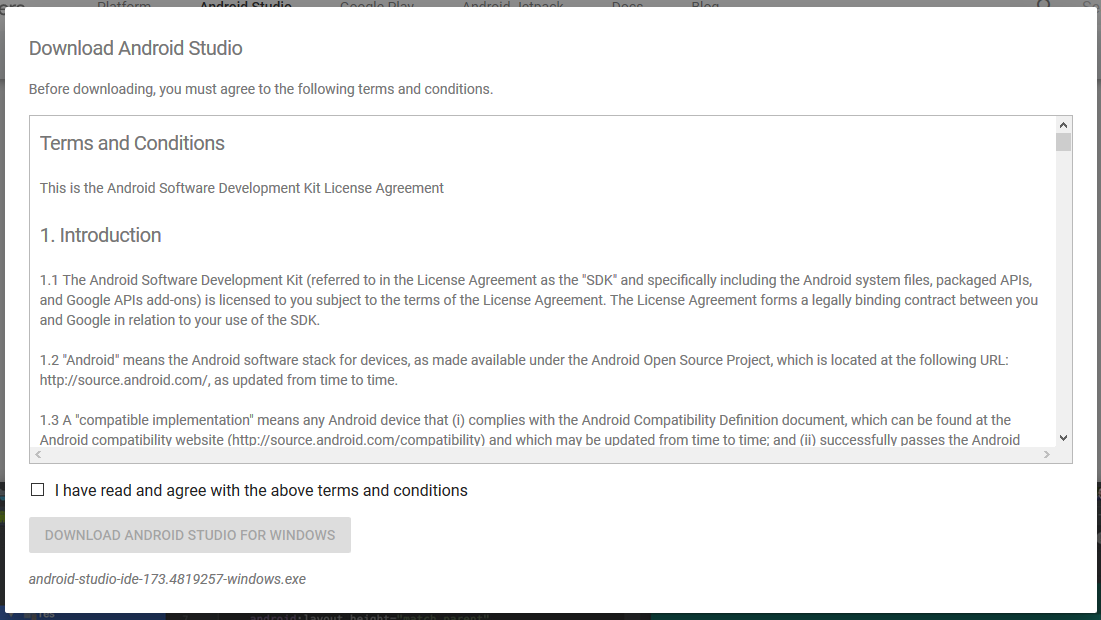
Click on the Save file button in the appeared prompt box and the file will start downloading.
Step 3:
After the downloading has finished, open the file from downloads and run it. It will prompt the following dialog box.
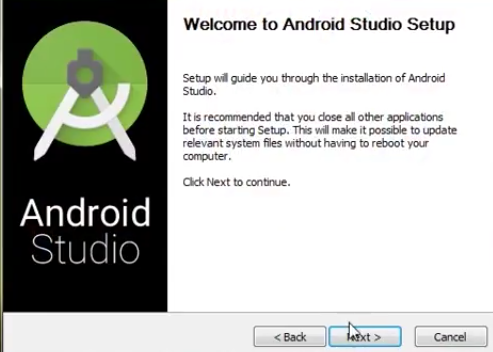
Click on next. In the next prompt, it’ll ask for a path for installation. Choose a path and hit next.
Step 4:
It will start the installation, and once it is completed, it will be like the image shown below.
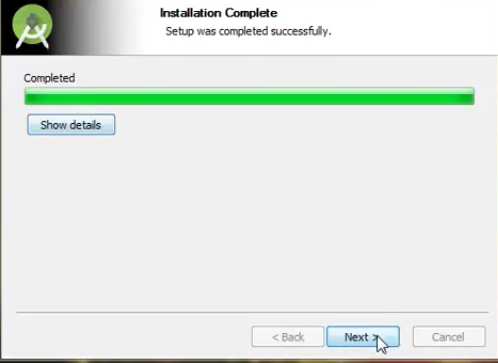
Click on next.
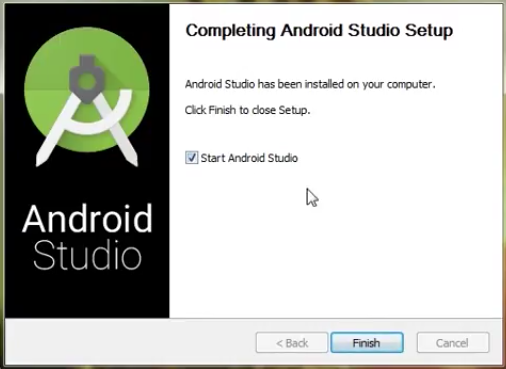
Step 5:
Once ” Finish ” is clicked, it will ask whether the previous settings need to be imported [if the android studio had been installed earlier], or not. It is better to choose the ‘Don’t import Settings option’.
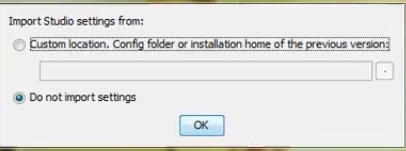
Click the OK button.
Step 6:
This will start the Android Studio.
Meanwhile, it will be finding the available SDK components.

Step 7:
After it has found the SDK components, it will redirect to the Welcome dialog box.
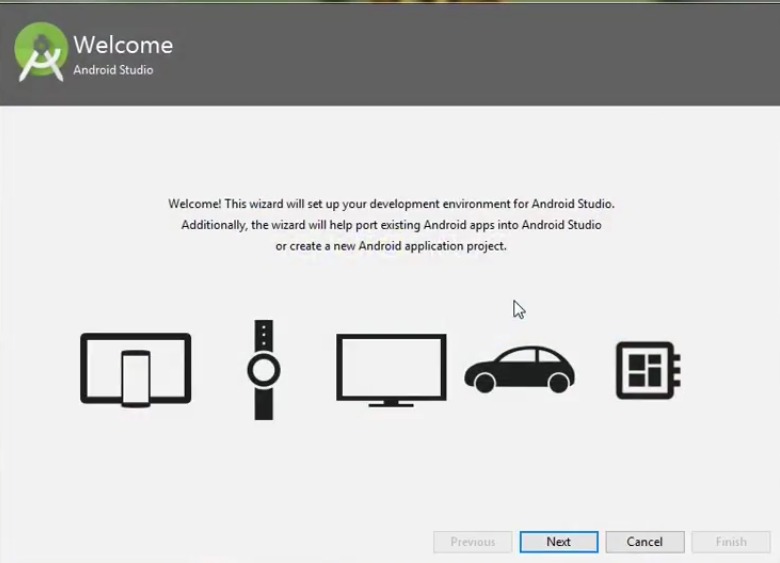
Click on Next .
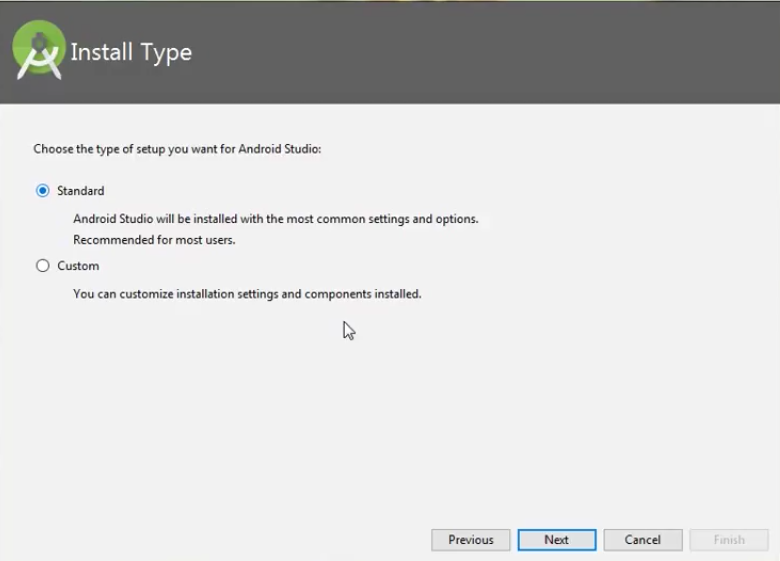
Choose Standard and click on Next. Now choose the theme, whether the Light theme or the Dark one. The light one is called the IntelliJ theme whereas the dark theme is called Dracula . Choose as required.
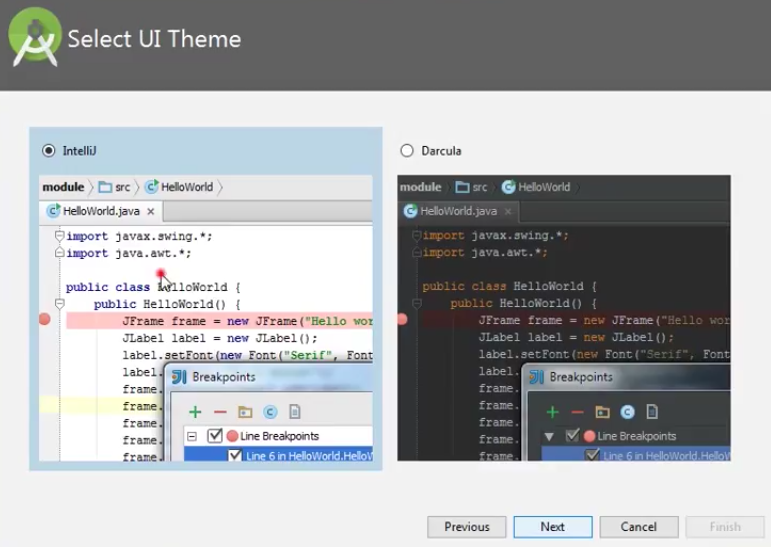
Click on the Next button.
Step 8:
Now it is time to download the SDK components.
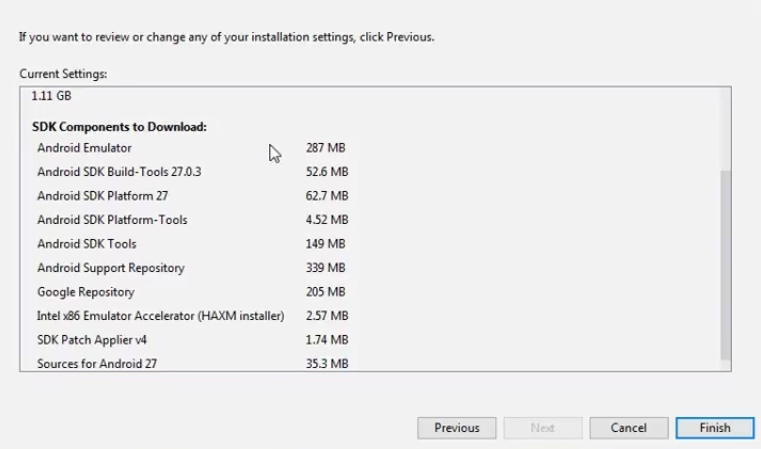
Click on Finish. Components begin to download let it complete.
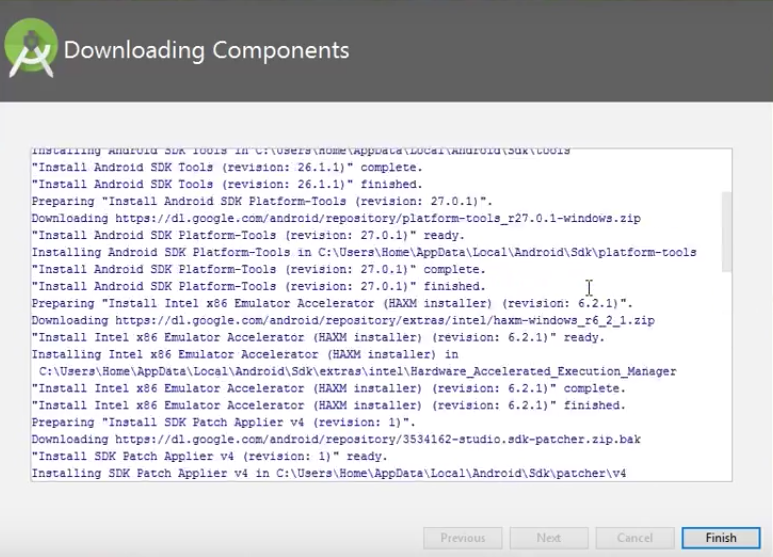
The Android Studio has been successfully configured. Now it’s time to launch and build apps. Click on the Finish button to launch it.
Step 9:
Click on Start a new Android Studio project to build a new app.
